Managing Connections
Managing Connections
DBeagle keeps connection management lightweight and VS Code-native:
- Connection definitions live in the
dbeagle.connectionssetting. - Passwords live in VS Code
SecretStorage. - Trino headers also live in
SecretStorage. - The active connection controls tree browsing, query execution, autocomplete context, and SQL dialect resolution for generic
sqlfiles.
Adding a connection
You can open the connection form from either place:
- The
Add Connectionbutton in theConnectionsview - The
DBeagle: Add Connectioncommand in the Command Palette
Common fields
| Field | Description |
|---|---|
| Name | Friendly label shown in the tree and picker UIs |
| Driver | Trino, PostgreSQL, MySQL, SQL Server, or Vertica |
| Host | Database host or endpoint |
| Port | Driver-specific default port, editable when needed |
| Catalog / Database | The default catalog or database for the session |
| Schema | The default schema when the driver supports it |
| User | Database username |
| Password | Stored securely in VS Code |
| SSL / TLS | Toggle encrypted transport when your endpoint requires it |
| Timeout | Per-connection timeout override in seconds |
Advanced fields
| Field | Driver | Description |
|---|---|---|
| Headers | Trino | Custom HTTP headers such as bearer tokens or proxy headers |
| Session properties | Trino | Key/value session properties sent with queries |
| Verify server certificate | Trino, PostgreSQL, MySQL, Vertica | Turn off only for trusted development endpoints |
| Trust server certificate | SQL Server | Accept an otherwise untrusted SQL Server TLS certificate |
| Max pooled connections | PostgreSQL, MySQL, SQL Server, Vertica | Optional connection pool cap |
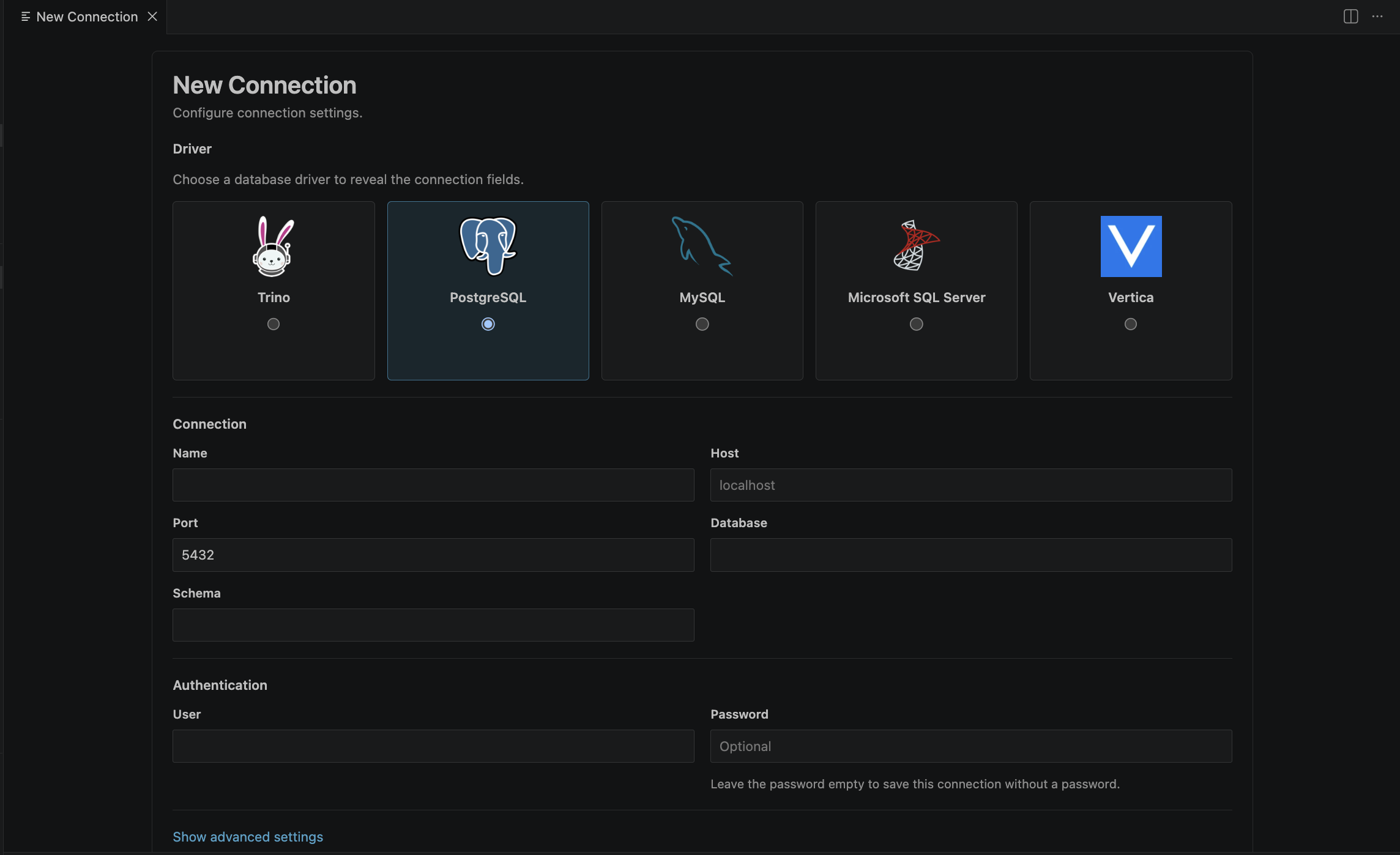
The connection form used for adding, testing, and saving connections.
Testing before save
Use Test Connection before saving. DBeagle verifies:
- Network connectivity
- Authentication credentials
- Basic server reachability through the selected driver
If the test passes, choose either:
Saveto keep the connection without activating itSave and Connectto make it active immediately
Editing, duplicating, and removing
Edit Connectionopens the saved settings back in the form.Duplicate Connectioncreates a copy you can tweak for another environment.Remove Connectiondeletes the saved definition and any stored secret entries for it.
Connecting and disconnecting
- Click a saved connection in the tree to connect.
- Use the inline
ConnectandDisconnectactions from the tree item context. - Use the connection picker from the editor toolbar when you are working in a SQL file.
The active connection is also reflected in the status bar and in the editor title toolbar for SQL files.
Schema selection
When a driver exposes schemas, use Select Active Schemas to scope what DBeagle shows.
This scope affects:
- The Connections tree
- SQL autocomplete metadata
- Other metadata-driven surfaces that use the shared schema snapshot
It is a usability filter, not a security boundary. For sensitive environments, still use scoped or read-only database credentials.
Refreshing metadata
Use Refresh Schema when:
- New tables or columns were added recently
- Autocomplete looks stale
- You changed schema scope and want a fresh metadata snapshot
Previewing tables and views
Click any table or view in the tree to run a bounded preview query. This is the fastest way to inspect data without writing SQL first.
Read-only and write mode
The Connections view header includes the safety toggle:
- When read-only is enabled, DBeagle blocks mutating SQL before execution.
- When write mode is enabled, DBeagle allows those statements through.
Read-only protection applies globally in the current release.